Git for Beginners: Basics and Essential Commands
What is Git
Git is a Version Control System (VCS) that helps developers track changes in their code over time.
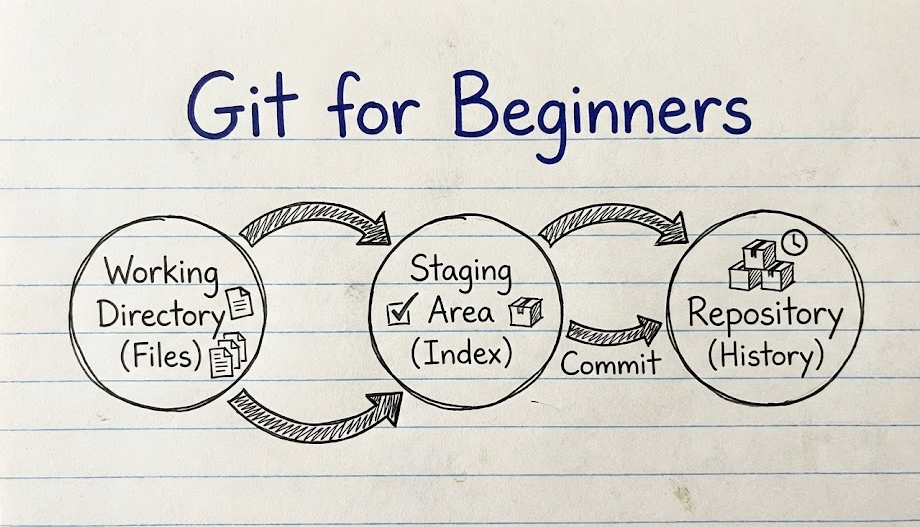
To understand Git, you need to know how it views your files. It uses three main "areas":
Working Directory: The files you are currently editing on your computer.
Staging Area: A "waiting room”. You put files here when they are ready to be saved (committed).
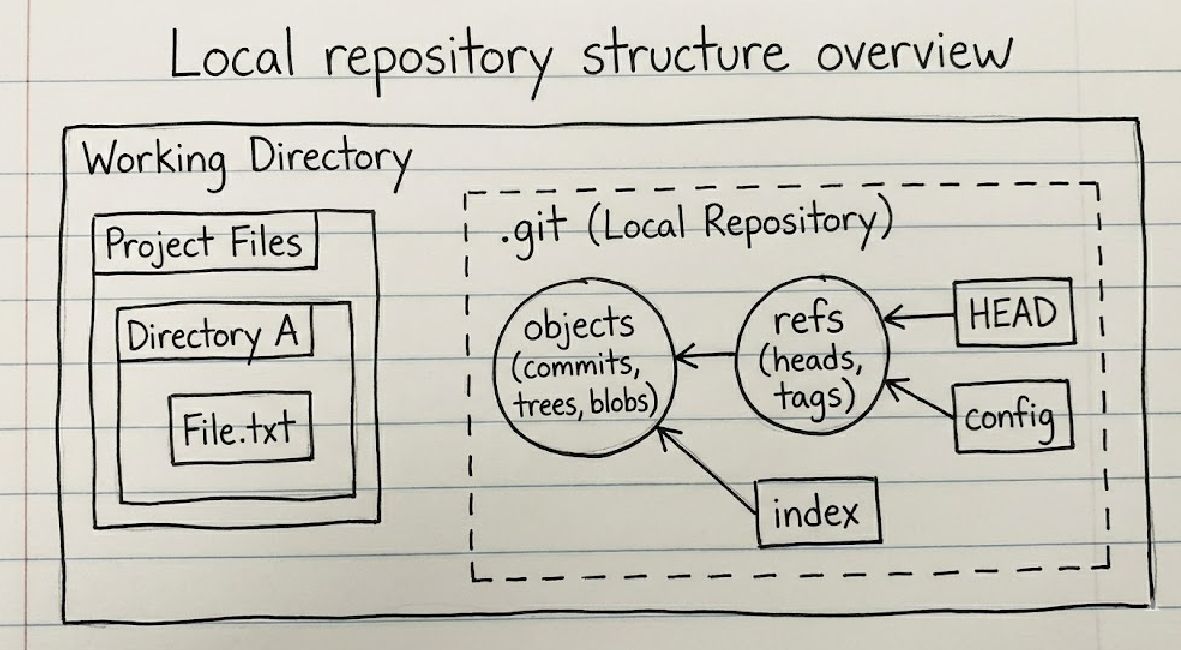
Repository (.git folder): The permanent history where Git stores all your versions.
Why use Git?
Collaboration: Multiple people can work on the same project simultaneously without overwriting each other's work.
Revert Changes: If a new update breaks your website, you can revert to the last working version in seconds.
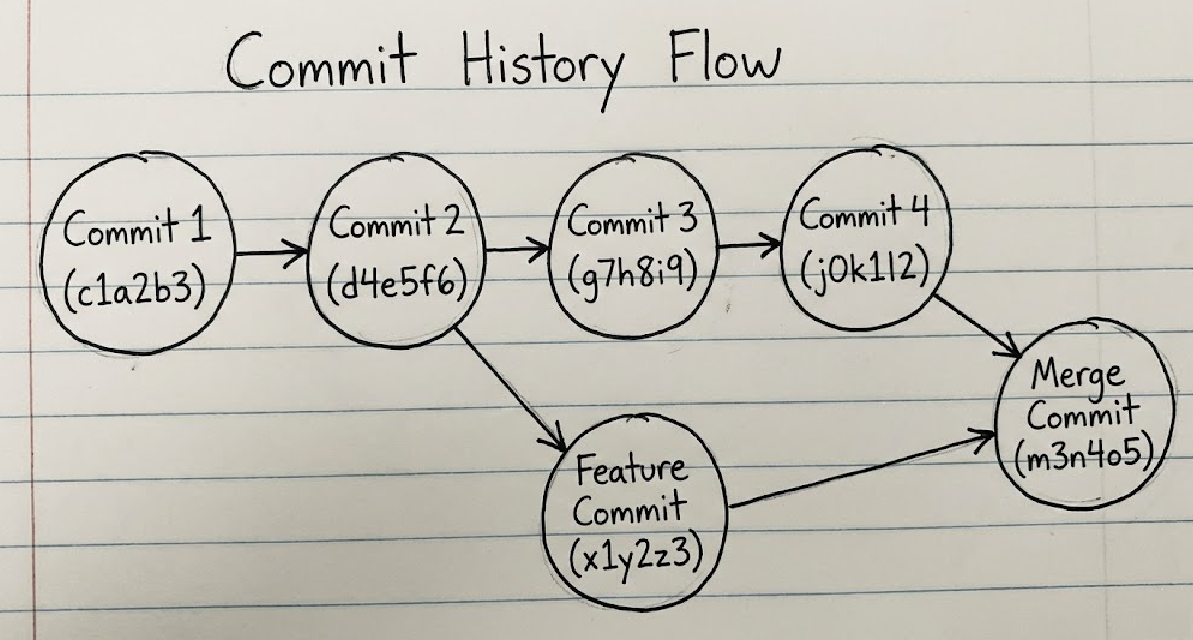
Experimentation: You can create a "branch" to try a new idea; if it fails, you just delete the branch and your main code stays safe.
Essential Git Commands
Here are the basic commands you will use in almost every project:
Setup & Starting:
Before you can track your code, you have to tell Git to start watching your folder.
git init: Initializes a new Git repository in your current folder.git clone: Downloads an existing project from the internet (like GitHub) to your computer.
The "Save" Process (Workflow):
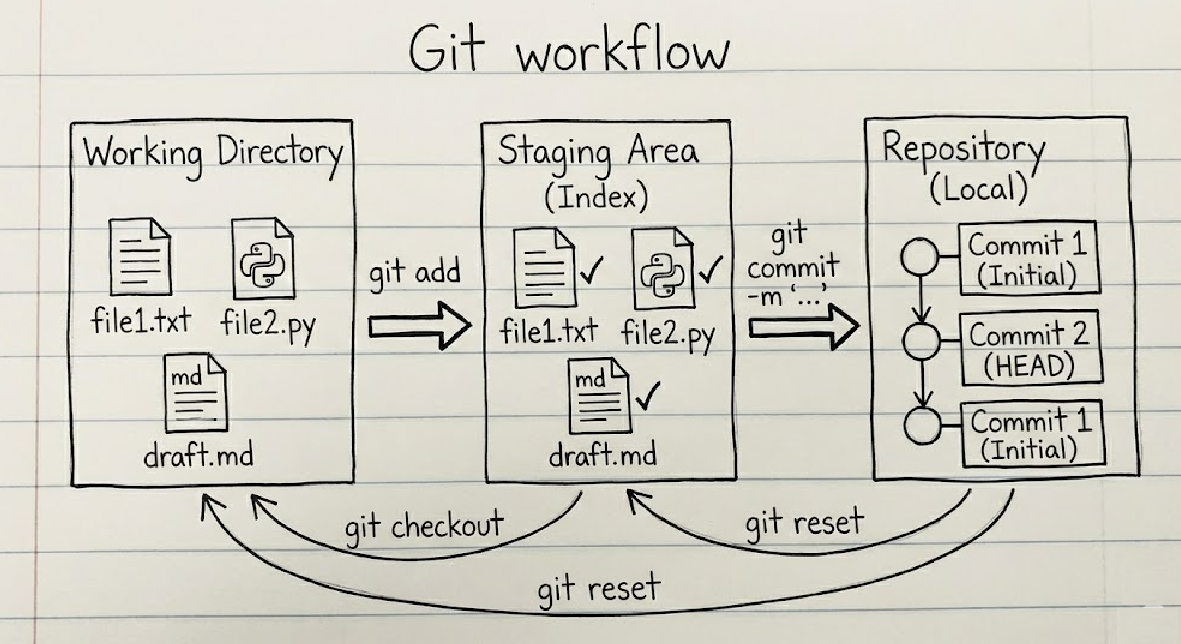
In Git, saving isn't just one click. It’s a two-step process: Staging and Committing.
git add <file>: This "stages" your changes. Think of this as putting items into a box before shipping them.- Shortcut:
git add .stages all changed files at once.
- Shortcut:
git commit -m "your message": This officially saves the staged changes into the project's history. The-mstands for "message," and you should describe what you changed (e.g.,"git commit -m "added login button"").git status: Use this constantly! It tells you which files are modified, which are staged, and what Git is currently seeing.
Sharing Your Work (Remote Commands):
Once you have saved changes on your computer, you usually want to send them to a place like GitHub.
git push origin main: This sends your local commits to the online server (GitHub).git pull: This does the opposite—it grabs the latest changes from GitHub and merges them into your local files. This is important if you are working in a team.
Moving Through Time
git log: Shows you a list of all the "saves" (commits) made in the project. You can see the ID, the date, and the message for each change.git checkout <branch-name>: This allows you to switch between different versions or "branches" of your project.
Collaboration & Branches:
git branch: Shows the different "timelines" of your project.